Skip to Main Content
NewKling 4.0Kling 4.0 is here · Seamless outfit swaps & cinematic effectsOutfit swaps & cinematic effectsTry Kling 4.0

Change clothes in video,without a reshoot.

Upload your video and an outfit photo to change clothes in video.
Check the credit cost, then generate.

Keep source audio
0 / 10000
Balance: — creditsCost: —
Usage notes
Quick prompts0 added

Click to add. Click again to remove. Your own text stays.

Be specific

Name the person and clothing, e.g. the gray T-shirt on the person in front.

This guides the edit; it does not lock the face or limit changes to clothing. Review the full video before use.

Files upload for checks after sign-in. Checking the cost uses no generation credits; clicking Generate reserves the displayed credits.

Generated videos are stored for 7 days after completion. Download yours before it expires.

Higgsfield examples: change clothes in video

1 / 6

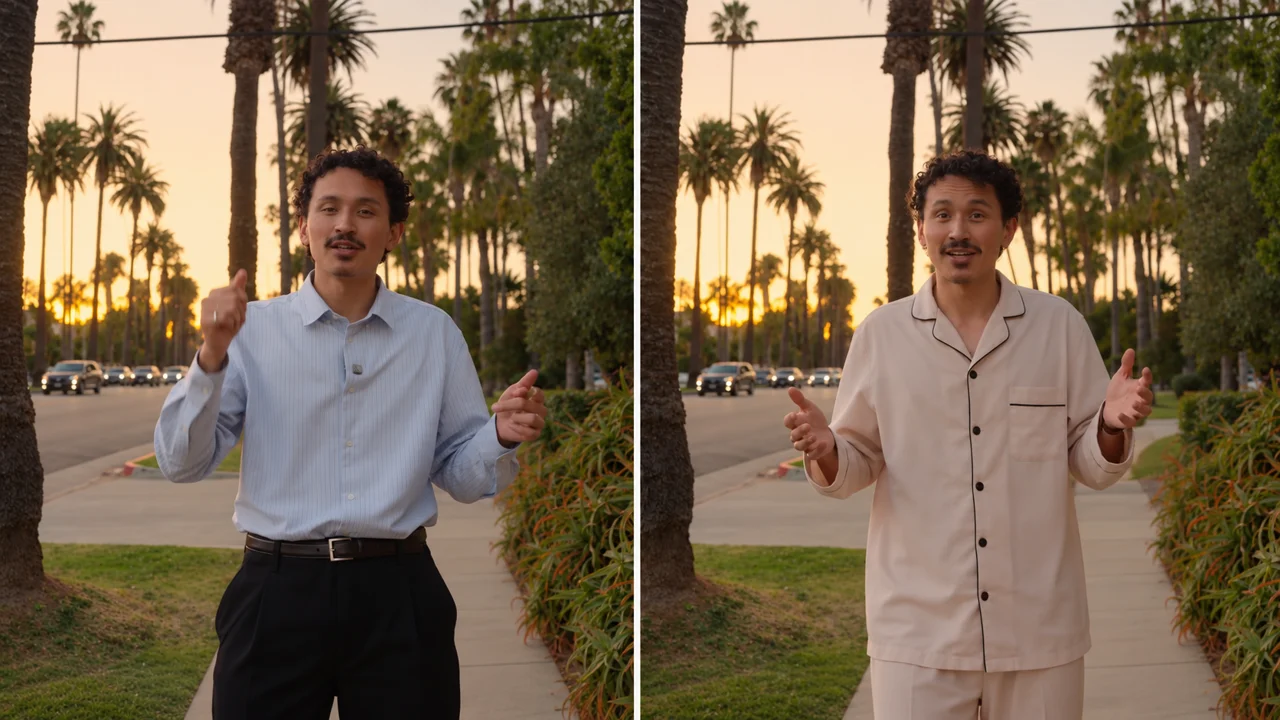
Shirt to pajamas

Prompt

Replace the main man’s shirt and trousers in @video1 with the ivory pajama set in @image1. Match the black piping, short sleeves, chest pocket and buttons. Preserve his face, hair, proportions, gestures, camera movement and street background.
Your first clothing edit

How to change clothes in video

To change clothes in video, add 1 video and an outfit photo. Clothing replacement and the default prompt are already selected.

A blue shirt and pale pajamas compared in the same street scene
AI-generated illustration of how to change clothes in video.
  1. Choose the part of your video to edit

    To change clothes in video, select 4–30 seconds you have permission to edit. Model limits vary; try 5–10 seconds first.

  2. Add the clothing reference

    To change clothes in video, add 1 clear outfit photo. Extra photos should show the same clothes and meet the model’s limits.

  3. Use the default or add a custom prompt

    The default edit replaces the main person’s outfit using your clothing photo. Add a prompt to specify a wearer, garment or special detail. @image1 is the clothing photo; @video1 is your clip.

  4. Check the cost, generate and watch the result

    Sign in to upload. Before you change clothes in video, check the model, length, resolution and credit cost. Click Generate video, then watch and download.

Change clothes in video →Read the complete beginner tutorial

Which photo should I use to change clothes in video?

To change clothes in video, show the outfit clearly. The photo guides the look; it does not measure fit or guarantee an exact product match.

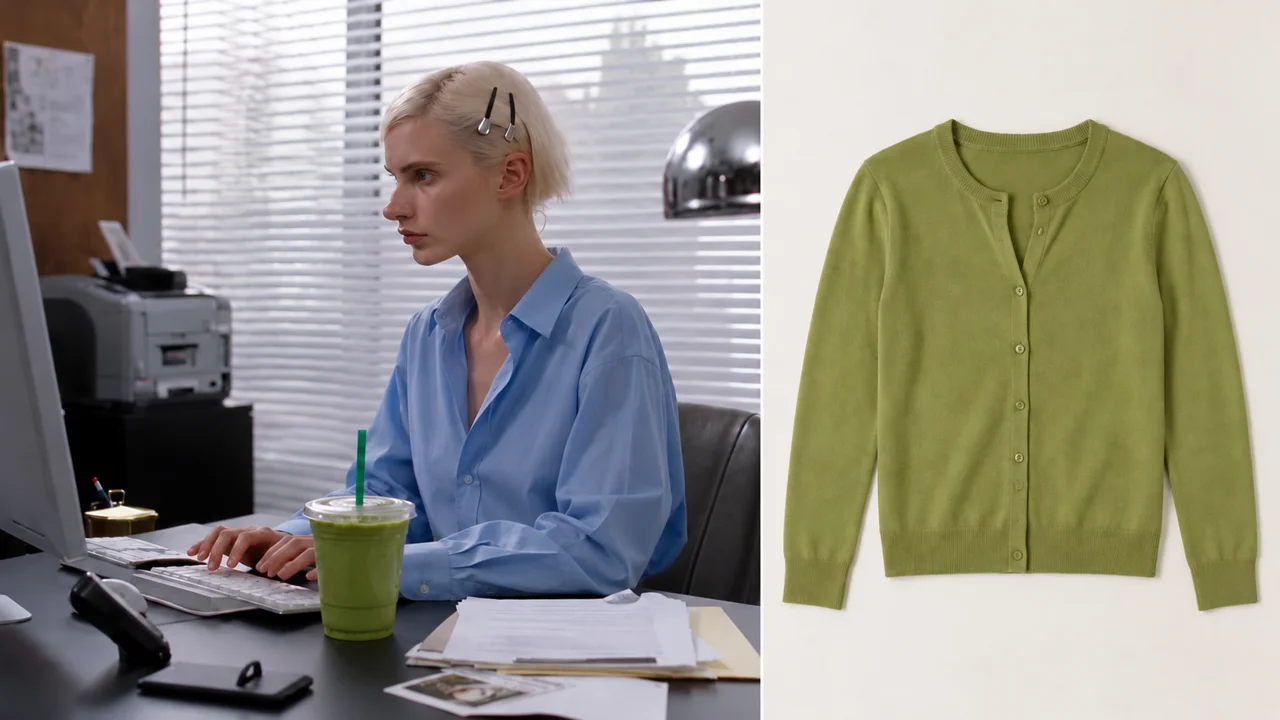
A blue-shirt source frame beside the target green cardigan reference
AI-generated illustration of how to change clothes in video.

Show the whole garment clearly

To change clothes in video, show the neckline, sleeves, hem, color and fabric in even light. Use a product or worn-outfit photo; show the whole outfit if needed.

Avoid hidden or conflicting details

When you change clothes in video, avoid collages, hidden sleeves, filters and different outfits. Face-only photos cannot show the clothes. Start with 1 reference.

To change clothes in video, use JPG/JPEG, PNG, WebP, HEIC or HEIF images: at least 300 px per side, up to 20 MiB. The editor checks model limits. HEIC/HEIF previews depend on your browser.

Prompts to change clothes in video

Click Use in editor to fill the prompt without removing your files. Check the wording before generating.

Try another outfit

Replace only the main person’s outfit in @video1 with the clothing shown in @image1. Preserve their face, hairstyle, body proportions, gestures, camera framing and background. Match the fabric to the source lighting and movement. Do not add people or copy the reference background.

Replace just the jacket

Replace only the main person’s outer jacket in @video1 with the jacket in @image1. Keep the face, hair, inner shirt, trousers, hands, actions and background unchanged. Match the jacket’s scale, light and contact with the body.

Change a shirt’s color

Change only the main person’s shirt in @video1 to the color shown in @image1. Keep the original shirt cut and fabric appearance. Preserve the face, hair, other clothing, movement, framing and background. Keep the color consistent throughout the clip.

All 3 examples need an outfit photo to change clothes in video. Adapt the person, garment and color to your files. Copying or applying a prompt does not start generation or use credits.

Change clothes in video: check the full clip

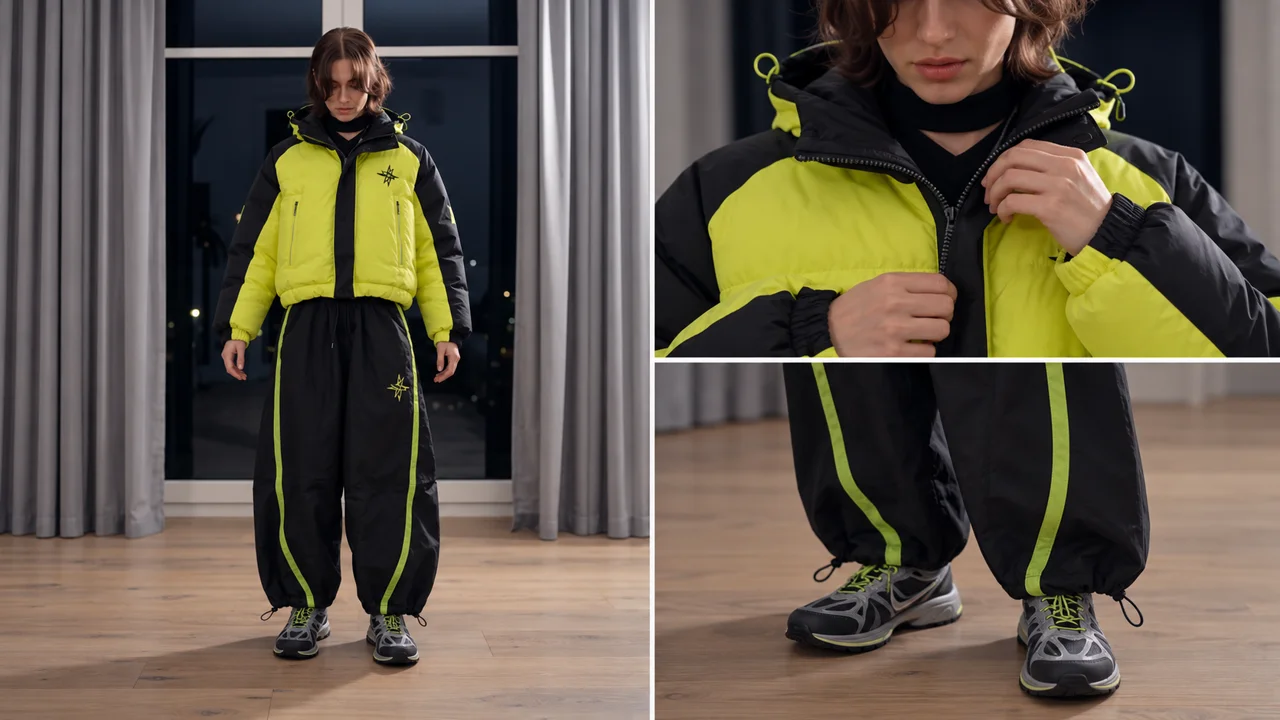
After you change clothes in video, watch the beginning, middle and end. Check turns and hands passing in front of the outfit.

A yellow jacket with close views of zipper, cuffs and trouser hems
AI-generated illustration of how to change clothes in video.
  • Person: after you change clothes in video, compare faces, hair, body shape and other people with the original.
  • Movement: when you change clothes in video, check turns, fast actions and hands or objects covering the outfit.
  • Clothing: after you change clothes in video, check sleeves, edges, folds, patterns, text and logos throughout.
  • Shot: after you change clothes in video, compare camera framing and backgrounds. If keeping source audio, check the downloaded sound.

More ways to change clothes in video

To change clothes in video with Higgsfield or Runway, follow their official guides. Their accounts, tools and credits are separate; purchases here do not transfer.

Genjutsu AI

Change clothes in video here with your video and outfit photo. Sign in and check the credit cost before clicking Generate video.

Change clothes in video →

Higgsfield Genjutsu

To change clothes in video, Higgsfield’s Genjutsu guide lists Wardrobe change: upload outfit references and choose Object Swap.

Read the official guide

Runway Edit Studio

To change clothes in video, Runway’s Edit Studio guide shows Change wardrobe: edit a keyframe, preview it, then generate.

Read the official guide

Official guides checked on October 20, 2026. Their features and limits may change. We have not compared generated results between these services.

Questions before you change clothes in video

Is changing clothes in a video free?

Selecting files and writing a prompt is free; generating a video uses credits. Sign in to upload and see the exact credit cost. Check the total before clicking Generate video.

Do I need an account or an app?

An account is required for uploads and generation; no app installation is needed. Use the browser editor. Sign in to upload, check the credit cost and track your video. You can select files and write prompts before sign-in.

Can I change clothes in video filmed on a phone or made with AI?

Yes. Use a video recorded on your phone or made with another AI tool. To change clothes in video, upload a supported file and select 4–30 seconds. The editor checks video size, dimensions and model limits.

Can I change clothes in video and keep the same face?

The face may change. Ask to change clothes in video while keeping the face and hair. There is no face lock or clothing mask. Watch the whole result for changes.

When I change clothes in video, will movement, background and audio stay?

Movement and background may change. Original audio can be kept. When you change clothes in video, the source guides the edit. If it has audio, enable Keep source audio in Advanced settings to retain it. This creates no speech or guaranteed lip sync. Check the exported video and sound.

Do I need a reference to change clothes in video, including color?

Yes. This editor requires an outfit photo, even for a color change. To change clothes in video, use a photo showing the target outfit or color. More images do not guarantee better results.

Can I change clothes in video for one person in a group?

You can request it, but the edit may affect other people. To change clothes in video for one wearer, name their position and clothes, such as “left person, black jacket.” Ask to keep others unchanged. Overlapping people or similar outfits can confuse the edit.

Can I change clothes in video with exact logos and fabric details?

Exact logos, fabric details and fit are not guaranteed when you change clothes in video. Check folds, sleeves and details hidden by hands. Accurate branding may need manual editing. This tool does not measure fit.

How long can I change clothes in video, and what does it cost?

Choose 4–30 seconds. The editor shows the credit cost before generation. To change clothes in video, select 4–30 seconds. Omni accepts up to 15 seconds; Wan Video Edit up to 10. Sign in to check the model, resolution and image-preparation cost. Check the total before clicking Generate video.

View credit packs and plansFind the official Higgsfield entry

Find a related tool, a practical guide, or the credit plan for your next edit.