

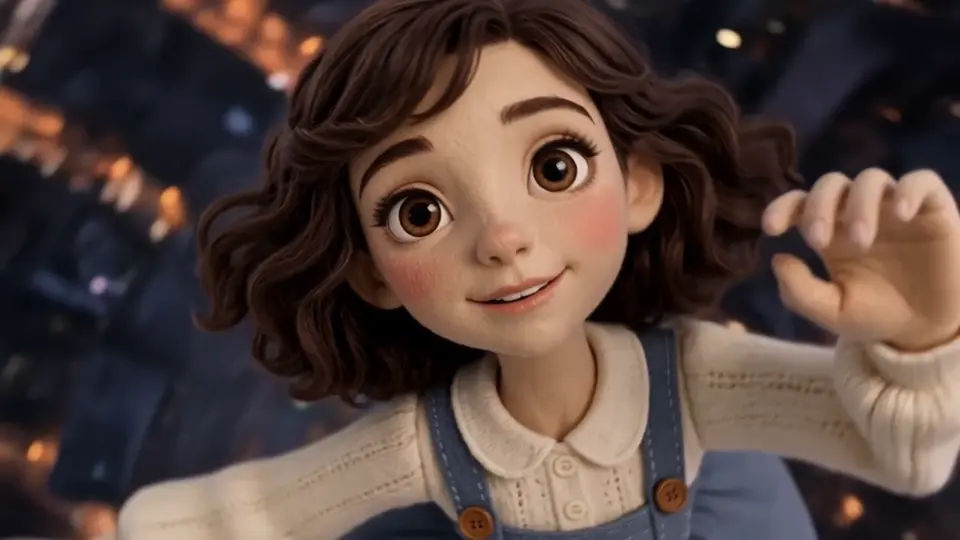
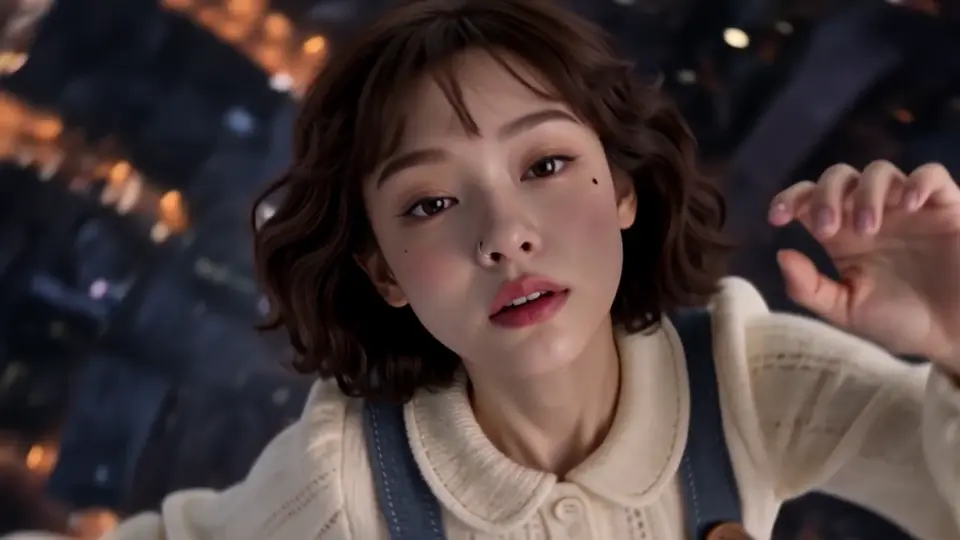
Transfer an action to an image
Start with a character image and a separate action video. The goal is to guide the image character’s movement. A prompt describes your intent; it does not guarantee an exact copy of every pose or frame.
Independent video workspace
Yes—AI motion transfer uses a character image for appearance and your video as the action reference. Viggle Mix and Kling Motion Control document this workflow. Compare the options below, or prepare your own inputs in this independent studio.
This studio is independent of Higgsfield. Accounts, credits, models and support are separate.
The comparison is a third-party illustration, not a result generated by this studio or a test of your own image and video.
Original clips and effect examples from Higgsfield, shown as references. Generation uses the original and your photo; results may vary.
Choose by the job you need to do: body movement, a talking performance, or rebuilding a shot around its existing motion. These capabilities overlap; the table describes documented workflows rather than scoring their output quality.
| Tool / official source | Documented inputs | When to consider it | What to distinguish |
|---|---|---|---|
| Viggle MixRead official documentation | Character image + uploaded motion video, or a motion template. | Animating an image using a dance, walk or other reference action. The official page describes the Mix upload workflow. | A template is optional; your own clip can supply the motion. This workflow description is not a guarantee of exact movement or identity. |
| Kling Motion ControlRead official documentation | Reference action video + character image; the guide covers VIDEO 3.0 and 2.6 Motion Control. | Guiding body action and expressions from a motion reference, with model-specific framing and orientation settings. | Image/video orientation affects the workflow. The 3.0 facial element feature references facial information; it does not supply clothing or props. |
| Runway Act-TwoRead official documentation | Driving performance video + character image or character video. | Speech, expressions and performance. Character images support hand/body gesture control when the gesture setting is enabled. | Gesture control is unavailable with a character-video input. Image inputs can add camera/environment motion; do not assume the driving video’s scene is retained. |
| Higgsfield GenjutsuRead official documentation | Existing video + reference images and a description of the intended changes. | Its Motion Transfer page describes retaining motion, camera and timing while rebuilding the scene from references. | Motion Transfer rebuilds the scene. Object Swap is documented separately for selected changes that preserve the rest of the shot. |
Sources: the official pages linked in each row, all readable at the check date. This is a capability comparison, not a same-input test, quality ranking or promise about today’s plans and pricing.
Face consistency in AI videoThe editor below the hero already starts in Motion transfer. Add a motion video and character reference, check the chosen model and settings, then review the credit quote before confirming generation. The current editor shows the applicable upload and clip limits.
Genjutsu AI is an independent service. The Higgsfield row describes Higgsfield’s own product; its accounts, credits and capability claims do not describe this studio.
Upload an image and motion videoThe editor starts in Motion transfer. Upload your own authorized video and select the continuous action you want the character to follow. Check the current clip limits in the editor.
Add an authorized photo or original character image. Match its framing and proportions to the movement, then review the model, background and source-audio options. Image requirements can differ by model.
After signing in, valid inputs are uploaded and checked for a quote. Review the selected model, clip duration, resolution, any image preparation and total credits. Confirm only when the inputs and cost match your intent.
Start with a character image and a separate action video. The goal is to guide the image character’s movement. A prompt describes your intent; it does not guarantee an exact copy of every pose or frame.
Choose person replacement when the existing scene is the starting point and you want a different performer. Review what the selected model preserves. Motion transfer may use the image’s setting or reinterpret the scene.
Talking performance is a separate selection criterion. Check whether the workflow controls face, gestures and speech, and how its image and video inputs differ. Reusing a recording alone does not create accurate mouth movements.
A full-body dance and a waist-up talking performance need different references. Start with one clearly visible subject, then follow the selected tool’s framing guidance.
Kling’s 2.6 guide recommends matching full-/half-body proportions, visible limbs and a clear, continuous single-subject action. Avoid obstructed movement and cuts. Check the selected version’s orientation settings.
Kling input guidanceAct-Two recommends a single, well-lit subject framed no wider than waist-up, with the face visible and no cuts. For gestures, keep hands visible at the start and use a starting pose similar to the character image.
Act-Two input guidanceFor this studio, use an authorized reference with compatible proportions and readable features. Check the chosen model’s current image count, formats and duration limits in the editor. Other tools’ limits do not apply automatically.
Animate the character in @image1 using the steps in the reference video. Follow its rhythm and body direction. Do not add gestures that are absent from the clip.
Use a short, easy-to-review sequence before trying a long or complex performance. The following is a preparation example you can adapt.
This is an input recipe and review plan, not a generated example or a promise of a specific result.
For an existing visual example, the character-replacement guide includes a previous app-generated anime case. It is a different workflow; its identity-reference photo is not shown and the clip is silent, so it does not prove this recipe, audio transfer or lip sync.
View the existing case and its limitsPlay the input and output side by side. Check action order, direction, rhythm, foot contact and hands. A smooth-looking clip can still miss the reference action.
Inspect the face, clothing and body proportions throughout the clip, especially during turns and occlusion. One still image leaves unseen details for the model to interpret.
Compare the actual setting with the chosen background option. Check camera movement and framing separately from body movement; they need not follow the same source.
If the source has audio and Keep source audio is enabled, this studio can reuse the selected clip’s recording. Listen to the result and watch the mouth separately. Reusing audio is not voice cloning or lip-sync repair.
If something is wrong, identify the mismatch and adjust one input or setting at a time. Prefer a clearer, shorter action over repeated blind retries; another paid generation is not guaranteed to fix the problem.
Viggle Mix and Kling Motion Control explicitly document image-plus-motion-video workflows. Act-Two covers driving performance, while Higgsfield Genjutsu describes shot transformation. Choose using the linked official descriptions and what you want to preserve; no same-input quality ranking is established here.
Compare toolsYes. This studio’s motion editor accepts your own video as the action reference. Templates are a separate starting point. Check the supported file and clip limits before uploading.
You can start with a single character image and a separate motion video. You do not need a video of the new character. Check the selected model’s reference requirements; a single image cannot show every angle or hidden body detail.
An original or authorized character image can be used as a reference where the selected model accepts it. Prefer readable human-like proportions and full-body framing for a full-body dance. Stylized anatomy, fast turns and occlusion can affect the result; inspect your own output.
It depends on the workflow, model and background setting. Transferring body motion does not automatically preserve the original scene or camera. If keeping the existing scene is your priority, also compare person replacement and review the final framing.
These are separate capabilities. Some documented performance workflows address speech and expressions. In this studio, keeping source audio reuses the recording; it does not generate new dialogue or guarantee accurate mouth movements. Check facial motion, sound and lip sync separately.
Audio, performance and lip-sync limitsMotion transfer guides an image character with a separate action video. Person replacement starts from an existing scene and changes its performer. Choose by the role of your inputs and what you need to preserve; inspect the actual output in either workflow.
Person replacementCost depends on model, duration, resolution and optional image preparation. Check the editor limits and the actual credit quote before confirming.
Genjutsu AI
Yes—AI motion transfer uses a character image for appearance and your video as the action reference. Viggle Mix and Kling Motion Control document this workflow. Compare the options below, or prepare your own inputs in this independent studio.
Upload an image and motion video